
Pulsoid develops heart rate tracking solutions for gamers and content creators. Using a supported heart rate monitor and the Pulsoid app, you can easily track your heart rate. Now, you can also integrate this feature into VRChat in just a few steps!
Step 1 — Enabling Pulsoid
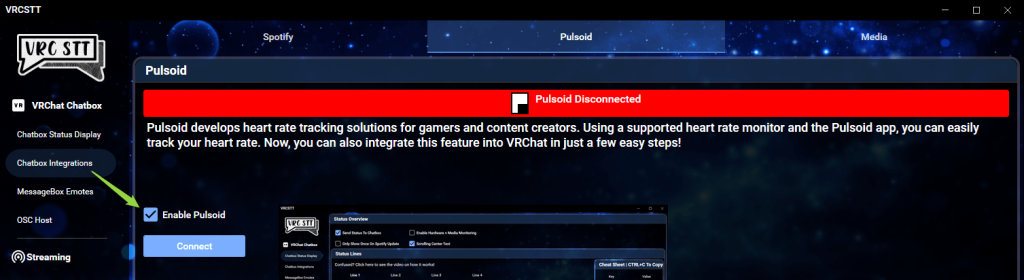
From the VRCSTT App, navigate to the VRChat Chatbox -> Pulsoid tab and click on Enable Pulsoid. Then click the Connect button.
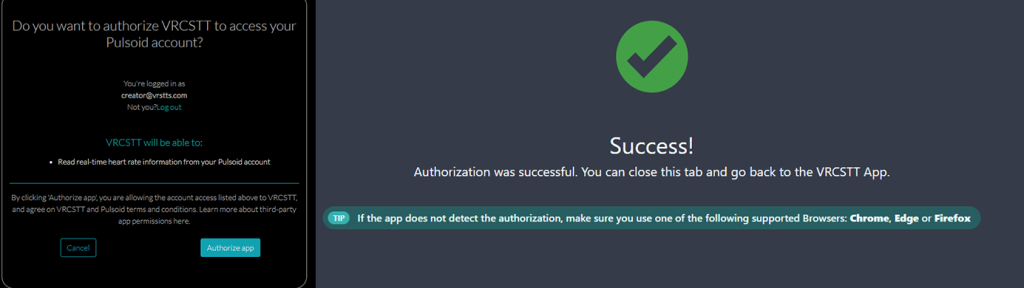
Once you’ve clicked the button, a webpage will open in your browser asking you to log in and authorize the VRCSTT app. Click the Authorize app button as shown below (you will need to create an account if not done already). Once, done, a “Success!” message should display from the browser and you will be able to close the window. Your VRCSTT program should also show a green status bar showing “Pulsoid Connected“.
Step 2 — Enabling Status Display
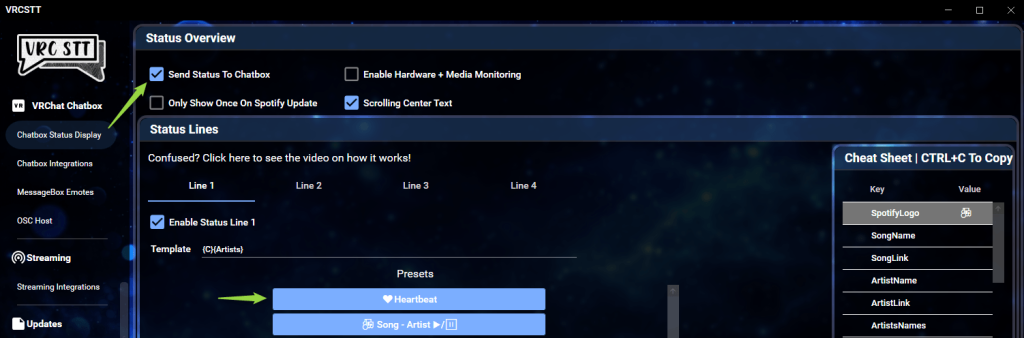
Inside the VRCSTT Program, navigate to the VRChat Chatbox -> Chatbox Status Display tab and enable the Send Status To Chatbox. Once enabled, you should start seeing status messages appear above your avatar’s head. Make sure to click on the “♥Heartbeat” preset button and your heartbeat should start displaying as your status.
If you experience any errors or your device is unable to connect to the VRCSTT App, try the following troubleshooting steps:
- Make sure your phone is in range of your heartrate monitor
- Turn on the heart rate monitor
- Verify that bluetooth is enabled on your phone
- Pair both devices
If you still are experiencing issues, verify for any error code that the VRCSTT app shows and take a screenshot of the error. Visit our Discord server and search in our forum the error you are having in case a solution was already posted. If not, open a new thread with the screenshot you took so we can assist you with your issue. If no errors was given from the VRCSTT app, please email [email protected] for troubleshooting the heart rate tracking part.