Want your viewers to see your speech directly on stream?
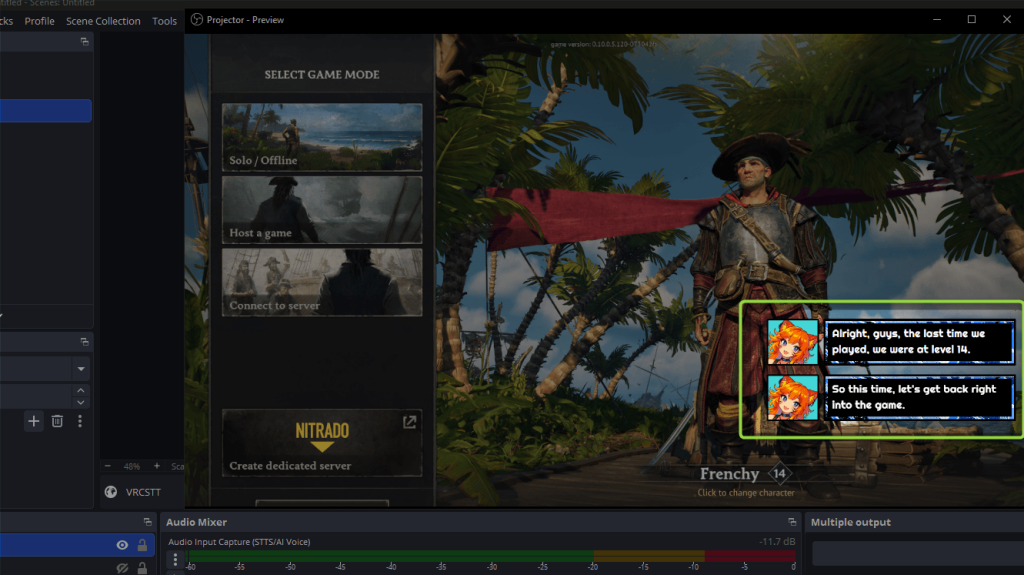
With OBS Studio and VRCSTT, you can create a live Speech-To-Text Chatbox that automatically displays your words on screen while streaming or recording.
This setup is especially useful for:
- VTubers
- Mute streamers
- Accessibility
- Noisy environments
- Multilingual audiences
- AI voice content creators
If you wish to setup an AI voice, refer to the following guide: OBS Studio (STT & STTS) Setup
Step 1 — OBS Setup via WebSocket
Open the VRCSTT Program and navigate to the Streaming tab:
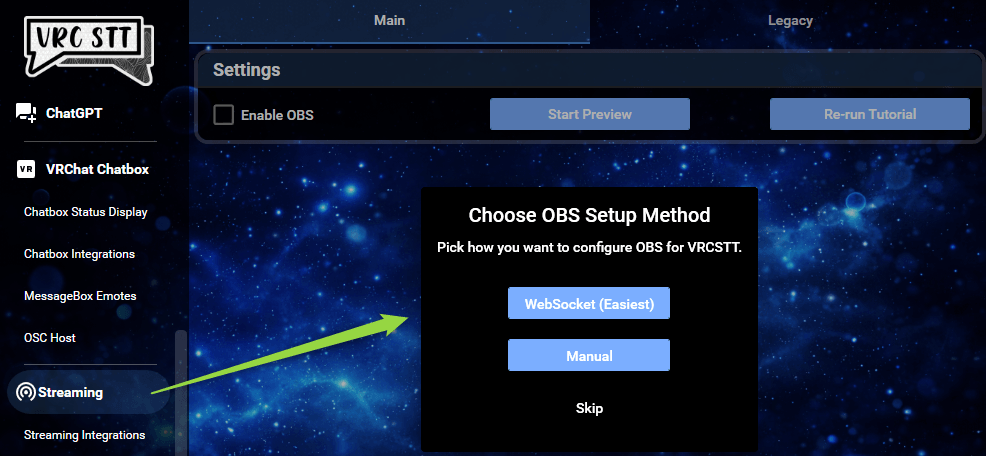
Follow the tutorial as shown in the VRCSTT Program. It involves 3 easy step where you allow the program to communicate with OBS to create a Browser Source. This source targets an HTML page that features the Chatbox so it can be displayed on OBS.
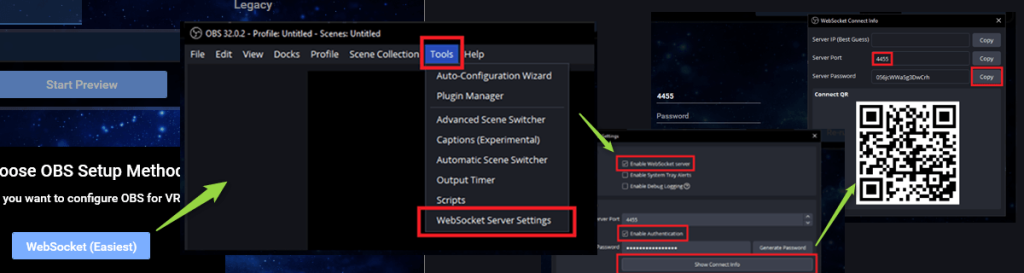
Step 2 — Customization of your Chatbox
The program offers a couple default presets. If you want to customize your own, you can duplicate any existing default presets and customize it your liking.
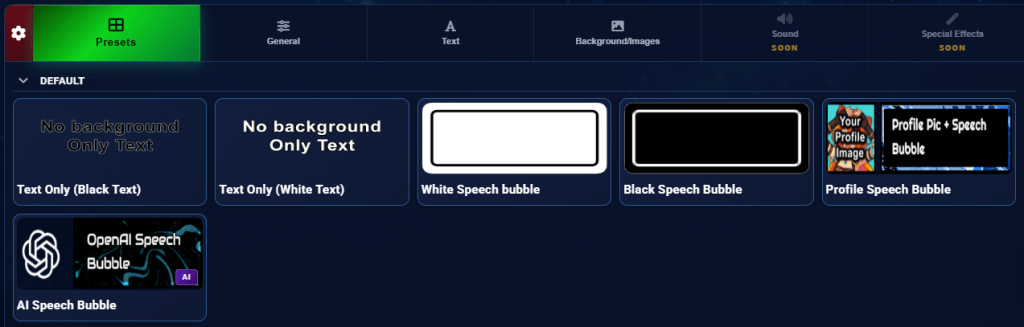
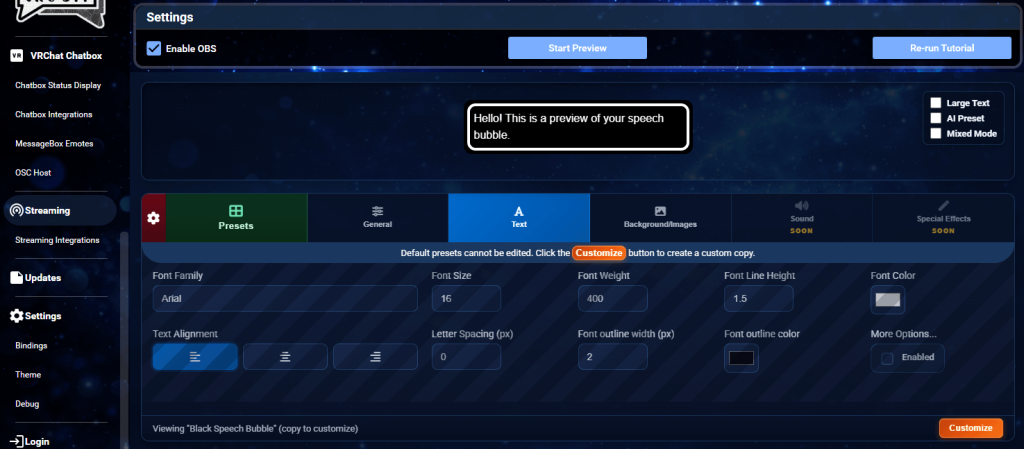
Afterwards, it is up to you to decide how your Chatbox will look and become unique to your situation.
Step 3 — Test Mode in OBS

OBS Logging is enabled by default when finishing the tutorial. If you are done customizing your Chatbox or simply wish to test the connection, you can either start talking in your microphone or click on the “Start Preview” button and look in your OBS preview to see if the Chatbox is to your liking.
For any other questions or issues you might have, feel free to reach out to us on our Discord and open a post in our #help-forum channel.