
Discord is another application that can make full use of your STTS once it has been setup. Once you have your virtual cables installed and working, we can proceed on how to set Discord so that our STTS voice can be heard clearly without any static noise.
If not done already, please head out to one of the following link:
For Voicemeeter Banana: https://vrcstt.com/voicemeeter-banana-setup/
Step 1 — VRCSTT Setup (Cable Output)
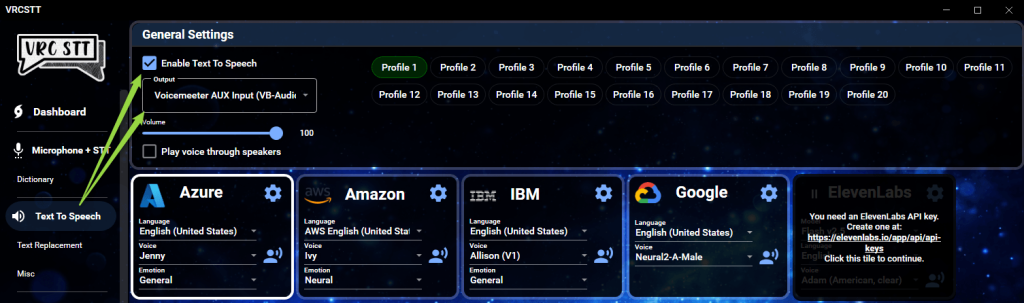
On your VRCSTT program, open the Text To Speech tab and make sure Enable Text To Speech is checked and Cable Input (or Voicemeeter AUX Input) is selected.
Step 2 — Discord Voice Setup
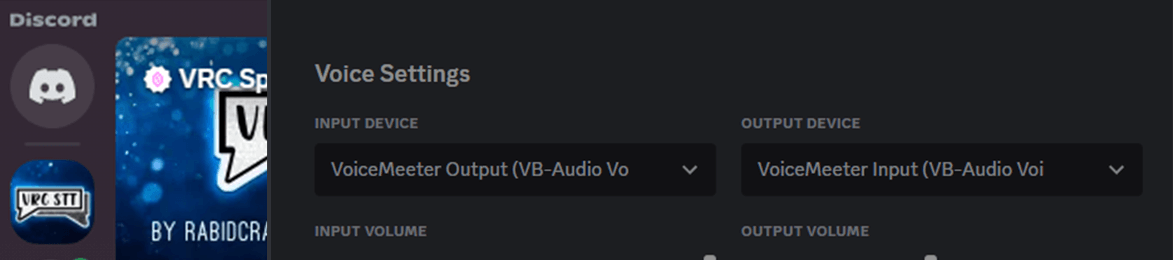
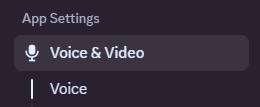
Navigate to the Voice & Video tab in our User Settings.
If you are using Cable Input, make sure you are using the following as your microphone:
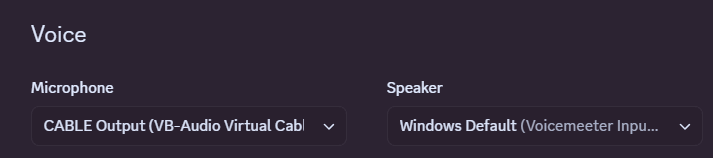
Perform an attempt with the VRCSTT program and see if the program picks up your voice. If setup correctly, your voice should be heard on Discord.
Step 3 — Fixing Static Noises
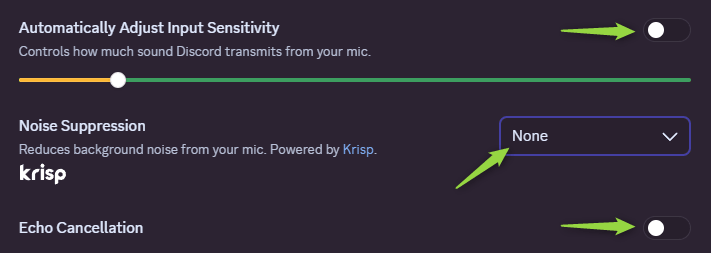
Discord is integrated with a noise filtration software as well as echo cancellation to help users get a more clear output out of their microphone. This works well when there are a lot of static noises in the background or other types of echoing noises. In our case, this is unneeded. The STTS output that we receive from our STT Program does not contain any echo or background noises and already sounds crystal clear. To avoid any issues and to make sure that our output does not get filtered when it shouldn’t, we will turn those features off.
Navigate down until you find Echo Cancellation and Noise Suppression. Make sure those settings are disabled.
To make sure the first word doesn’t get missed by Discord, Turn off “Automatically Adjust Input Sensitivity” and lower the threshold to a low range.